Follow this step-by-step guide to configure OBS Studio for live video streaming with your Server Room RTMP server. Get your stream live in minutes.
Follow each step carefully to configure OBS Studio for live video streaming with your Server Room RTMP server credentials.
Right-click the Scenes panel and click Add Scene. Then right-click the Sources panel, add your preferred capture device (e.g. video capture card, display capture, or camera), and click OK.
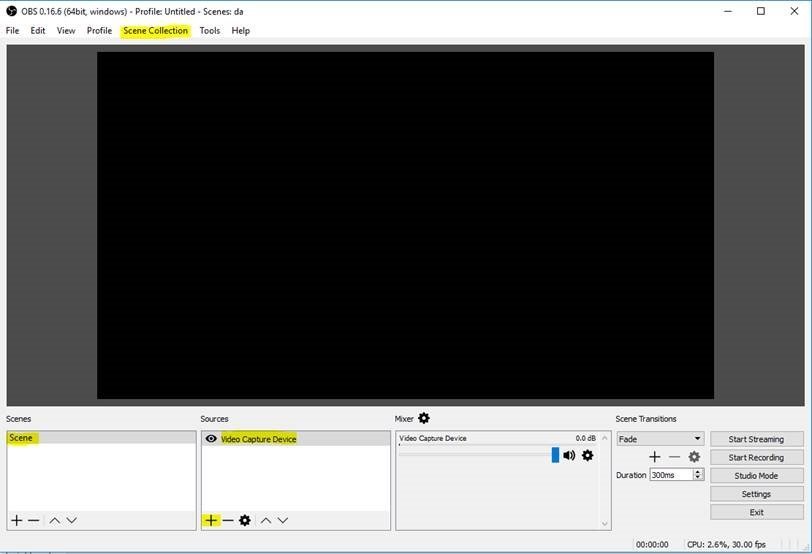 Expand
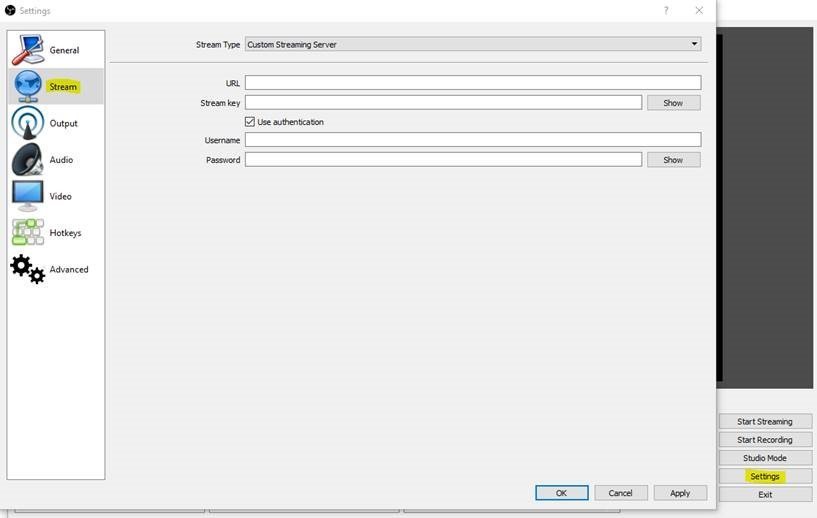
Open Settings → Stream. Set Stream Type to Custom Streaming Server, then fill in:
rtmp://domain:1935/appname)livestream)Click Apply.
 Expand
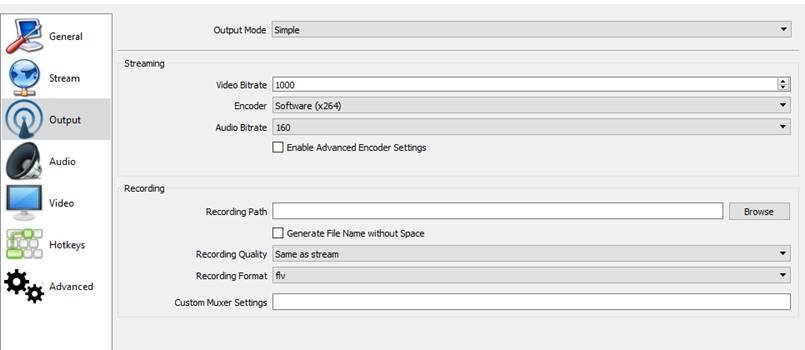
Go to Settings → Output (or Encoding in older versions) to set your video bitrate, resolution, and audio sample rate to match your Server Room plan and available upload bandwidth.
 Expand
Click Start Streaming in the OBS main window to begin sending your live stream to your Server Room server.
Common questions about configuring OBS Studio for live streaming with Server Room.