Servers in stock
 Checking availability...
50% off 1st month on Instant Servers - code 50OFF +1-646-490-9655
Build your server
OBS Studio • Streaming configuration tutorial

OBS Studio Live Video Streaming Tutorial

Follow this step-by-step guide to configure OBS Studio for live video streaming with your Server Room RTMP server. Get your stream live in minutes.

4-step guide RTMP streaming 24/7 live support

Step-by-step guide

Follow each step carefully to configure OBS Studio for live video streaming with your Server Room RTMP server credentials.

1

Add a scene and capture source

Right-click the Scenes panel and click Add Scene. Then right-click the Sources panel, add your preferred capture device (e.g. video capture card, display capture, or camera), and click OK.
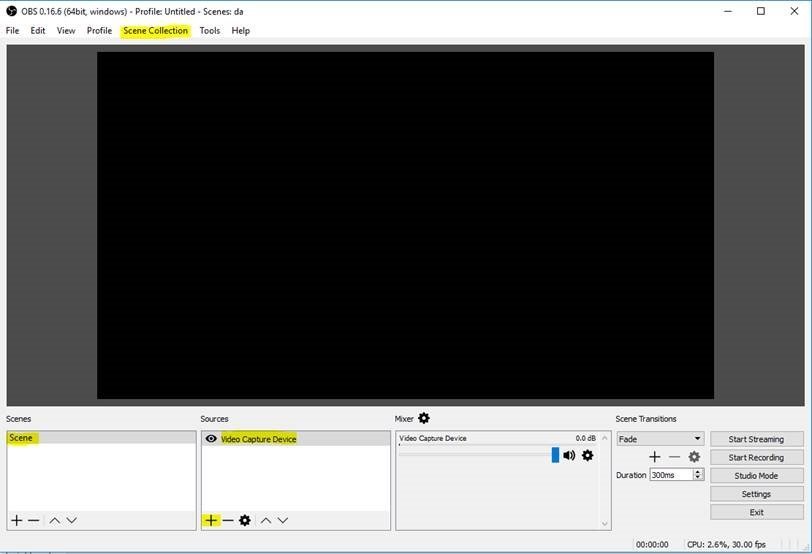
OBS Studio - Add Scene and capture source Expand
2

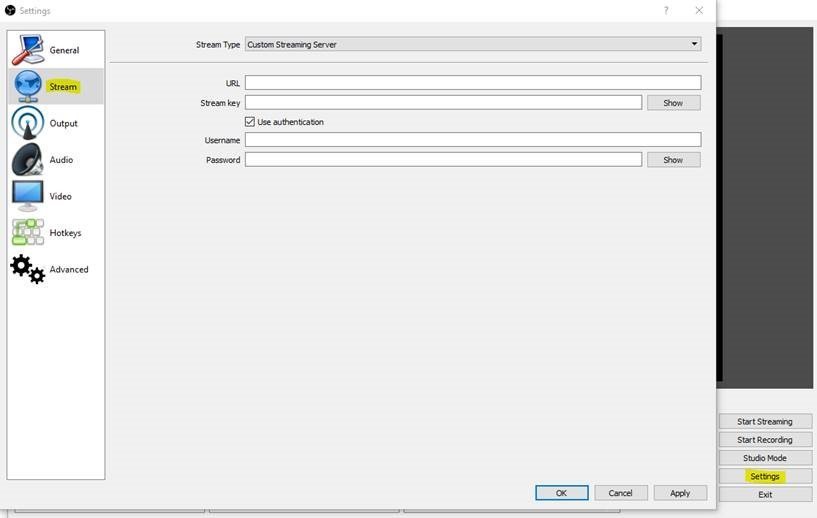
Enter your streaming server details

Open Settings → Stream. Set Stream Type to Custom Streaming Server, then fill in:

  • URL — your Server Room RTMP URL (e.g. rtmp://domain:1935/appname)
  • Stream key — your stream name (e.g. livestream)
  • Username / Password — your Server Room streaming credentials from your dashboard or welcome email

Click Apply.

OBS Studio - Stream settings: URL, stream key and credentials Expand
3

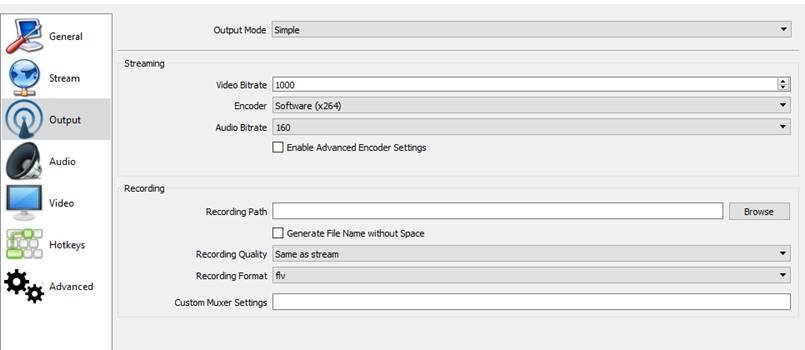
Configure encoding settings

Go to Settings → Output (or Encoding in older versions) to set your video bitrate, resolution, and audio sample rate to match your Server Room plan and available upload bandwidth.
OBS Studio - Output/Encoding settings Expand
4

Start streaming

Click Start Streaming in the OBS main window to begin sending your live stream to your Server Room server.

FAQ

Common questions about configuring OBS Studio for live streaming with Server Room.

Where do I find my Server Room RTMP URL and stream key?

Your RTMP URL, stream key (stream name), username, and password are available in your Server Room account dashboard and in your Server Room welcome email.

What format should the RTMP URL be in?

The URL format is rtmp://domain:1935/appname. Your specific domain, port, and application name are provided in your Server Room dashboard.

What video bitrate should I use?

This depends on your upload speed and Server Room plan. Common settings are 2500–4000 kbps for 720p and 4000–6000 kbps for 1080p. Match the bitrate to your available upload bandwidth.

Why does OBS fail to connect?

Check that your RTMP URL, stream key, username, and password are entered correctly. Make sure your Server Room video service is active and no firewall is blocking RTMP port 1935. Contact our support team via live chat if the issue persists.

Can I use OBS for both audio-only and video streaming?

OBS is primarily a video streaming tool. For audio-only radio streaming, see our tutorials for BUTT Encoder, Mixxx, or other audio encoders.

Ready to go live?

Our audio and video streaming services include unlimited connections, unlimited bandwidth, and 24/7 expert support to keep you on air.