Follow this step-by-step guide to configure SAM Broadcaster for live audio streaming with your Server Room SHOUTcast or Icecast server. Get your station live in minutes.
Follow each step carefully to configure SAM Broadcaster for live audio streaming with your Server Room server credentials.
Download SAM Broadcaster from spacial.com. Double-click the installer and follow the setup steps. If you don't want to install MySQL, choose the FireBird version — it requires no additional database setup. Once installed, open SAM Broadcaster and complete the initial radio setup wizard.
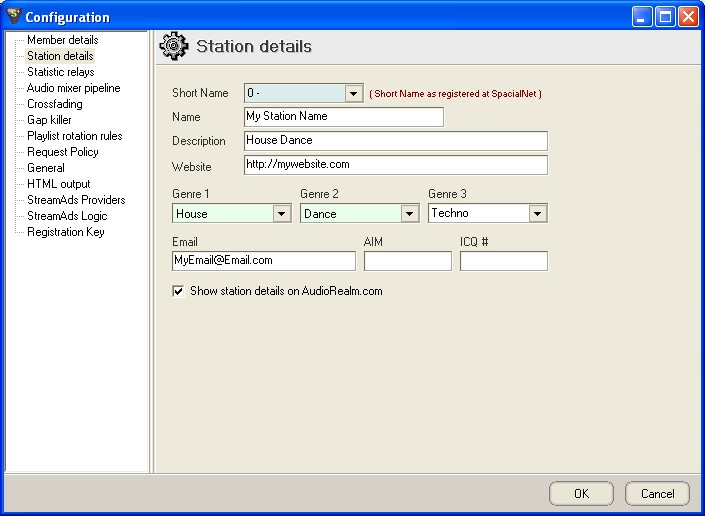 Expand
Click OK to close the setup wizard. From the SAM Broadcaster menu, click Windows → Encoder to open the encoder panel.
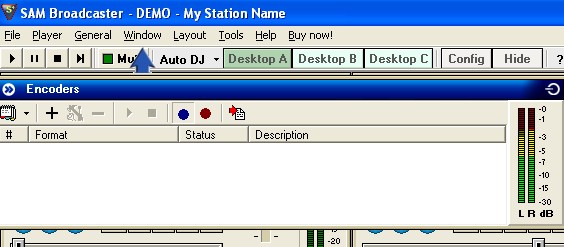 Expand
In the Encoder window, click the File button and select New. The Select Plug-in dialog will open — choose the encoder type that matches your Server Room plan.
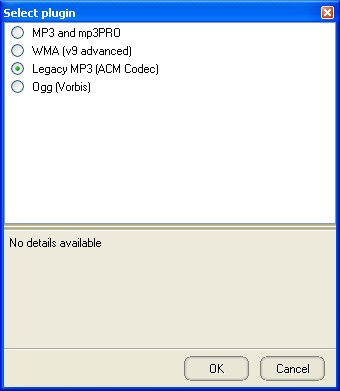 Expand
Select your bitrate based on your Server Room streaming plan. SAM Broadcaster supports MP3, AAC+, AAC+V1, and AAC+V2 formats — all compatible with Server Room streaming servers.
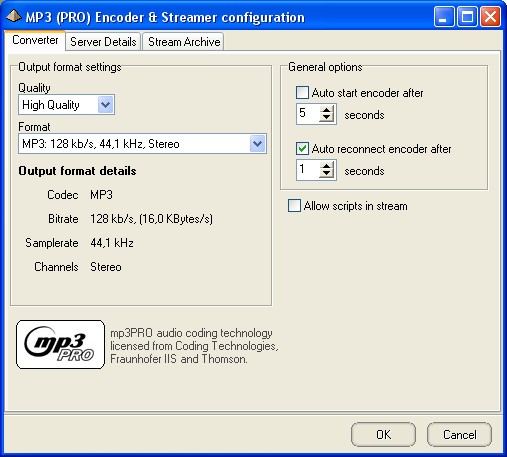 Expand
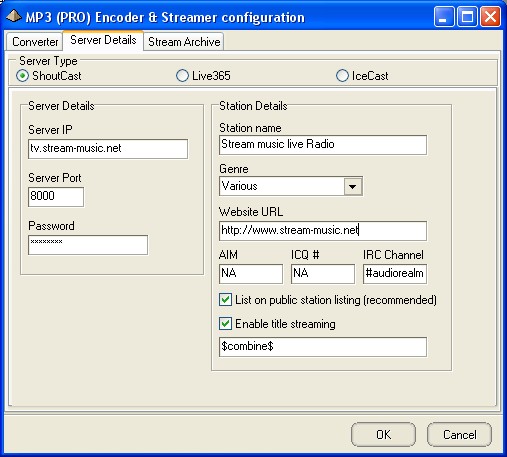
Click the Server Details tab and enter your Server Room streaming address, port number, and password. These are available in your Server Room setup email and in your account dashboard.
 Expand
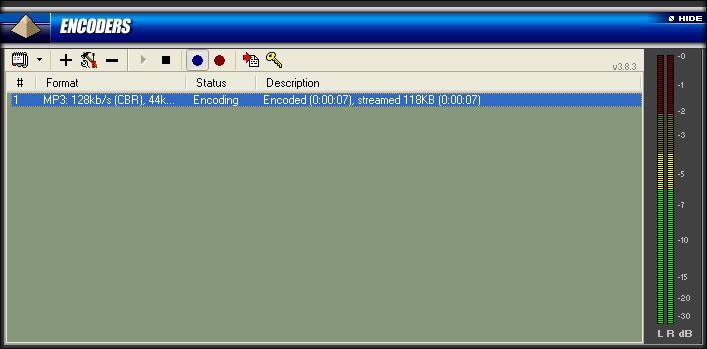
Click OK to save the encoder settings, then click the Play button to connect. Once connected, the encoder panel will show the server as connected. You can verify your stream is live by visiting your SHOUTcast page at accountname.serverroom.net:PortNumber.
 Expand
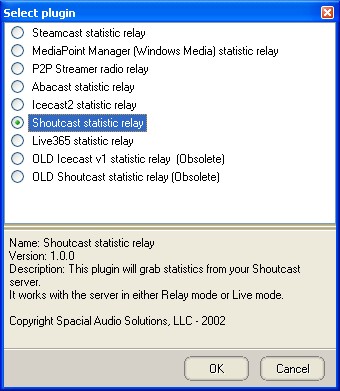
To enable statistics reporting, go to Windows → Statistic Relays. Click + and select SHOUTcast statistic relay. Enter your server address, port, and password, then click OK. Press Play or F10 to activate the relay and update your statistics.
 Expand
Common questions about setting up SAM Broadcaster with Server Room streaming services.