Follow this step-by-step guide to configure Adobe Flash Media Live Encoder for live video streaming to your Server Room Flash Media Server. Get your stream live in minutes.
Follow each step carefully to configure Flash Media Live Encoder for live video streaming with your Server Room server credentials.
Open Flash Media Live Encoder. In the lower-right corner, enter your stream details:
rtmp://demofs.srfms.com/live/ (replace demofs with your account name)livestream). You can run two streams simultaneously with different names.Click Connect, then enter your username and password when prompted.
Select your preferred video capture device from the list and set your video encoding details (format, resolution, frame rate, bitrate). Click Next.
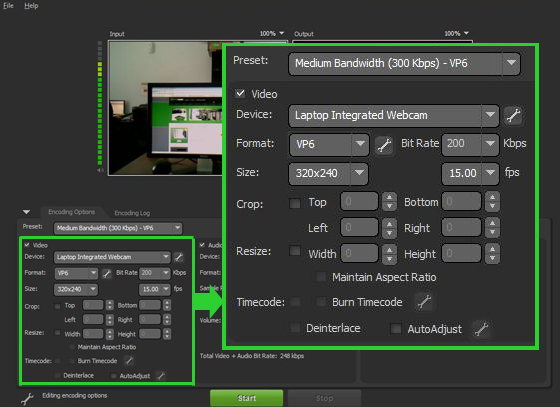 Expand
Select your preferred audio input device and set your audio details. The total bitrate shown at the bottom is the sum of your audio and video bitrates — make sure your internet upload speed can support it.
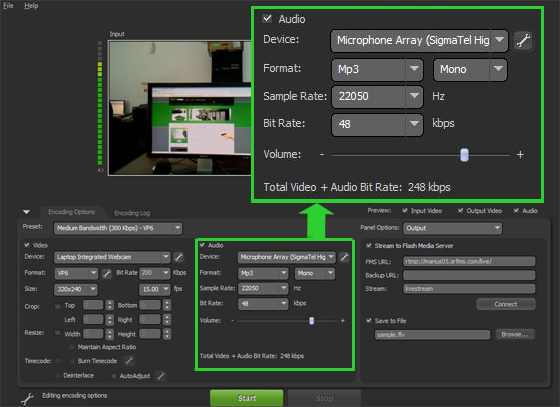 Expand
Review your settings summary. When ready, click the Start button to begin your live stream. You can monitor stream logs in the encoder window once streaming is active.
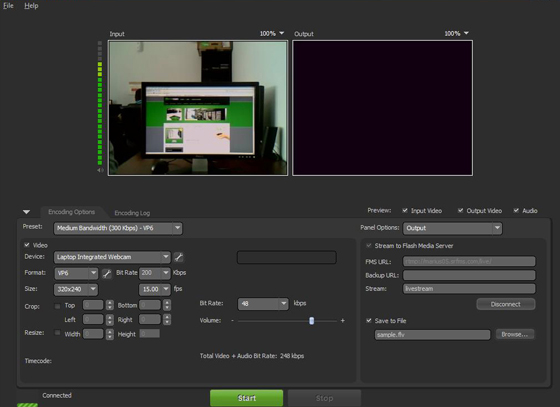 Expand
To embed your stream on a website, use the same RTMP URL from step 1 and your stream name with a .flv extension in the stream field. Click Update and preview code to generate and copy your embed code.
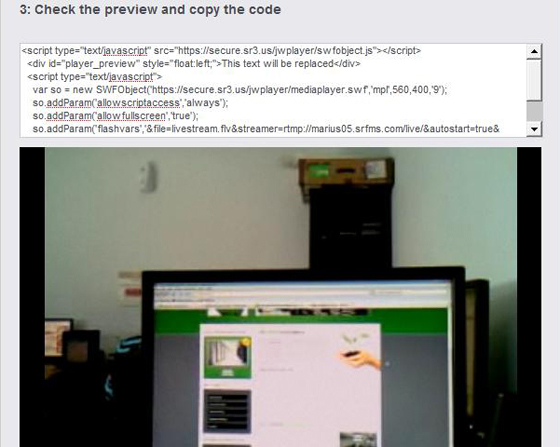 Expand
Common questions about configuring Flash Media Live Encoder for live streaming with Server Room.