Servers in stock
 Checking availability...
50% off 1st month on Instant Servers - code 50OFF +1-646-490-9655
Build your server
EdCast • Streaming configuration tutorial

EdCast Streaming Configuration Tutorial

Follow this step-by-step guide to configure EdCast for live audio streaming with your Server Room SHOUTcast or Icecast server. Get your station live in minutes.

5-step guide SHOUTcast & Icecast 24/7 live support

Step-by-step guide

Follow each step carefully to configure EdCast for live audio streaming with your Server Room server credentials.

1

Download lame_enc.dll

EdCast requires lame_enc.dll for MP3 encoding. Download it from djlab.com and save it to your downloads folder.
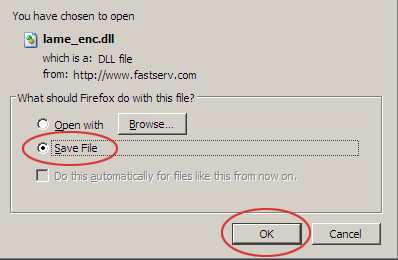
EdCast - Download lame_enc.dll Expand
2

Copy lame_enc.dll to the EdCast folder

Copy the downloaded lame_enc.dll file and paste it into the EdCast installation folder. This enables MP3 encoding within the application.
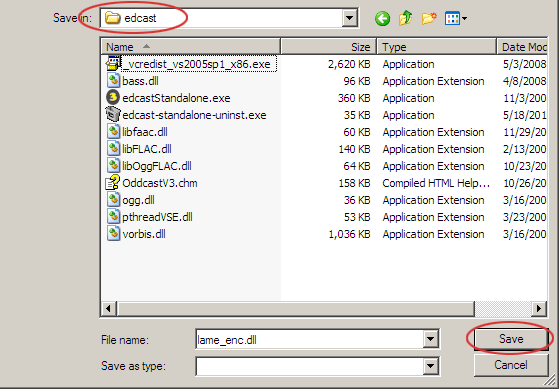
EdCast - Copy lame_enc.dll to installation folder Expand
3

Add and configure an encoder

Open EdCast and click Add encoder. Right-click the newly created encoder and click Configure to open its settings.
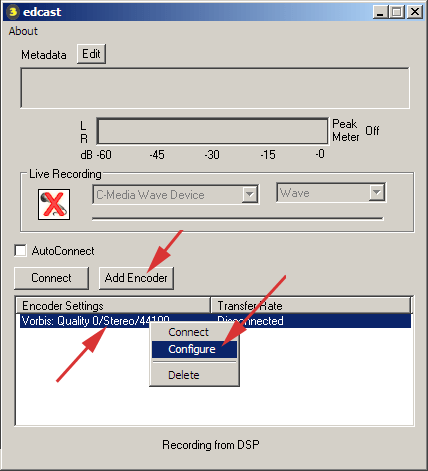
EdCast - Add encoder and configure Expand
4

Enter your server credentials

In the Basic Settings tab, set your bitrate and sample rate, select MP3 Lame as the encoder type, and choose your server type. Enter your Server Room streaming address, port, and password. Click YP Settings to continue.
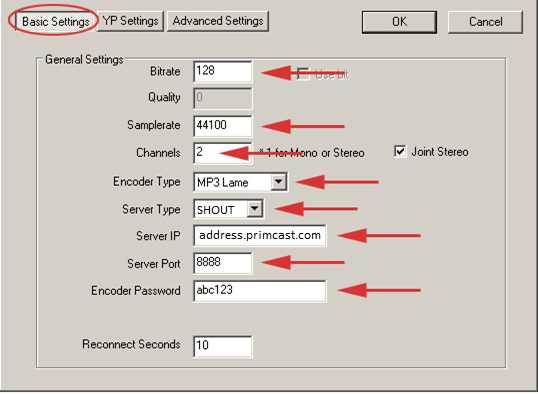
EdCast - Basic Settings: bitrate, server type and credentials Expand
5

Add station details and connect

In YP Settings, enter your stream name, description, website URL, and genre. Highlight your encoder in the list and click Connect to start your live broadcast.
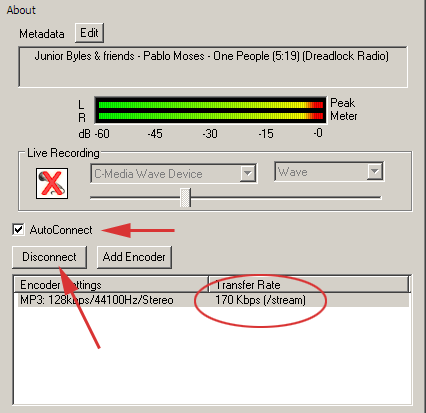
EdCast - YP Settings and Connect button Expand

FAQ

Common questions about setting up EdCast for live audio streaming with Server Room.

Why do I need lame_enc.dll?

EdCast does not bundle the MP3 encoder library. lame_enc.dll must be placed in the EdCast installation folder before the encoder can stream in MP3 format.

Where do I find my streaming address, port and password?

Your streaming credentials are available in your Server Room account dashboard under your radio server details.

Which server type should I select — SHOUTcast or Icecast?

Select the server type that matches your Server Room plan. For Icecast, select Icecast2 and enter your mount point (e.g. /stream).

What bitrate and sample rate should I use?

128 kbps at 44100 Hz is recommended for most broadcasts. Use lower bitrates (64–96 kbps) for listeners on slower connections.

What should I do if EdCast fails to connect?

Verify your streaming address, port, and password are correct. Make sure lame_enc.dll is in the EdCast folder, your Server Room radio service is active, and no firewall is blocking the port. Contact our support team via live chat if the issue persists.

Ready to go live?

Our audio and video streaming services include unlimited connections, unlimited bandwidth, and 24/7 expert support to keep you on air.