Servers in stock
 Checking availability...
50% off 1st month on Instant Servers - code 50OFF +1-646-490-9655
Build your server
Barix Instreamer • Streaming configuration tutorial

Barix Instreamer Streaming Configuration Tutorial

Follow this step-by-step guide to configure your Barix Instreamer hardware encoder for live audio streaming with your Server Room SHOUTcast or Icecast server. Get your station live in minutes.

6-step guide SHOUTcast & Icecast Hardware encoder

Step-by-step guide

Follow each step carefully to configure your Barix Instreamer for live audio streaming with your Server Room server credentials.

1

Find the encoder's IP address

Power on the Barix Instreamer and plug in headphones or a speaker. The device will announce its IP address via audio. The default address is 192.168.10.10. Enter this address in your browser to access the web interface.

2

Open Advanced settings

Once logged into the web interface, click the Configuration tab and then click Advanced settings.
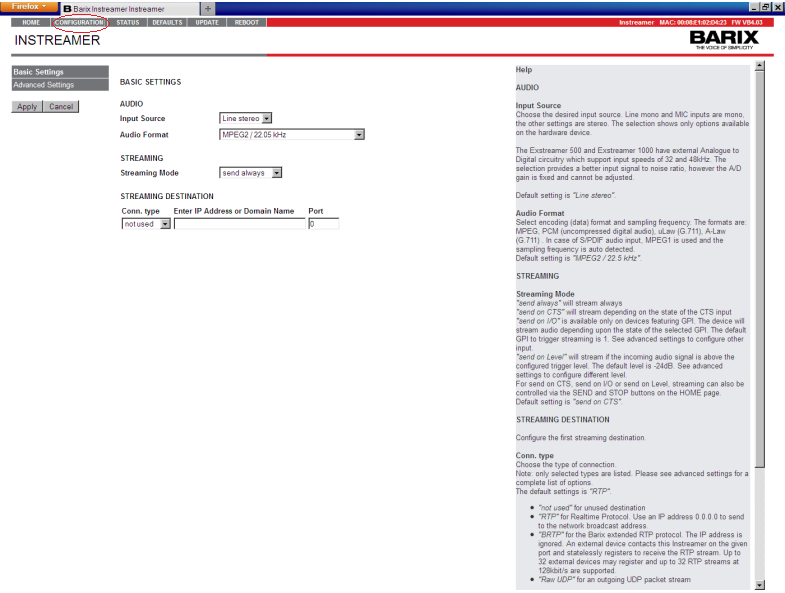
Barix Instreamer - Configuration tab, Advanced settings Expand
3

Select audio input and format

In Advanced settings you can select your audio input source, audio format, and streaming destination.
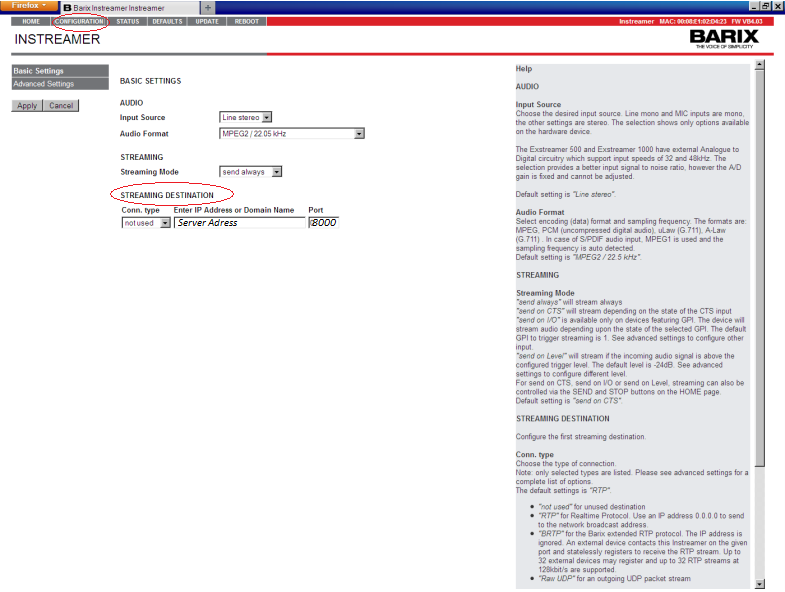
Barix Instreamer - Advanced settings overview Expand
4

Configure the Audio menu

In the Audio menu, select your desired input source, audio format, and bitrate. Choose based on your listeners' connection speed:
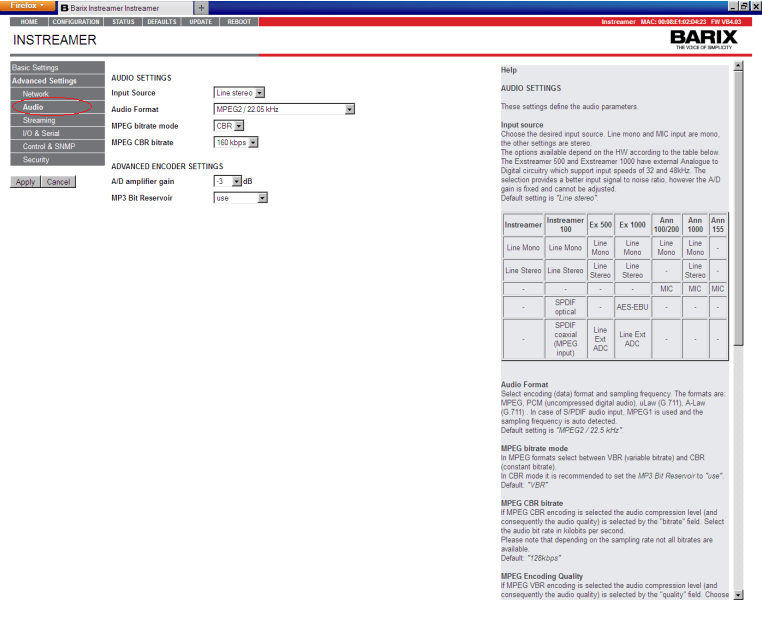
  • 32–96 kbps — for listeners on slower connections
  • 96–128 kbps — for broadband listeners (CD quality at 128 kbps)
Barix Instreamer - Audio menu: input, format and bitrate Expand
5

Enter your streaming destination

Enter your Server Room streaming address and port number in the Streaming Destination field. Your streaming address and port are available in your Server Room setup email or in your account dashboard. Click Apply to save.
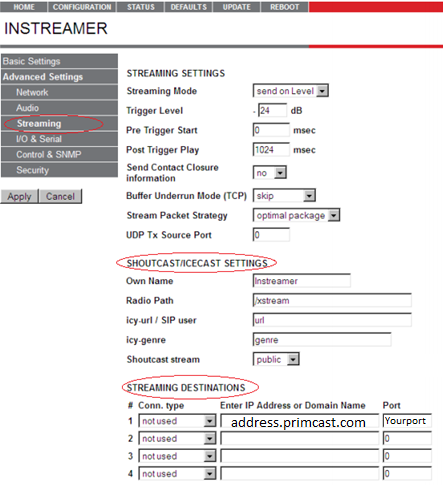
Barix Instreamer - Streaming Destination: address and port Expand
6

Set the streaming password and go live

Go to the Security tab and enter your streaming password (not the admin password). Click Apply to start streaming.
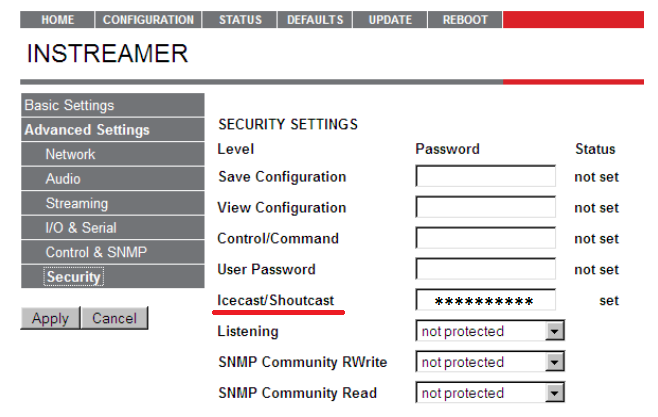
Barix Instreamer - Security tab: streaming password Expand

FAQ

Common questions about configuring the Barix Instreamer for live streaming with Server Room.

Where do I find my Server Room streaming address, port and password?

Your streaming address, port, and password are available in your Server Room account dashboard and in your Server Room setup email.

What is the default IP address of the Barix Instreamer?

The default IP address is 192.168.10.10. Power on the device and listen via headphones or speakers — it will announce its current IP address.

Which bitrate should I use?

Use 32–96 kbps for listeners on slower connections and 96–128 kbps for broadband listeners. Standard CD quality audio is encoded at 128 kbps.

What is the difference between the streaming password and the admin password?

The streaming password (source password) authenticates your encoder with the radio server. The admin password is for logging into the Barix web interface. Always use the streaming password in the Security tab.

What should I do if the Barix fails to connect?

Verify your streaming address, port, and streaming password are entered correctly. Make sure your Server Room radio service is active and that no network firewall is blocking the streaming port. Contact our support team via live chat if the issue persists.

Ready to go live?

Our audio and video streaming services include unlimited connections, unlimited bandwidth, and 24/7 expert support to keep you on air.