Follow this step-by-step guide to configure Microsoft Expression Encoder 4 with Smooth Streaming for live H.264 video broadcasting to your Server Room server. Get your stream live in minutes.
Follow each step carefully to configure Expression Encoder 4 for live Smooth Streaming with your Server Room server.
Log into your Server Room account, go to the Account tab, and click Publishing Points. Add a new publishing point for your live stream.
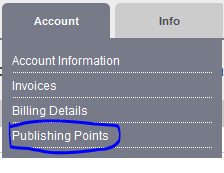 Expand
Provide a name and title for the publishing point, and set its type to match your intended stream.
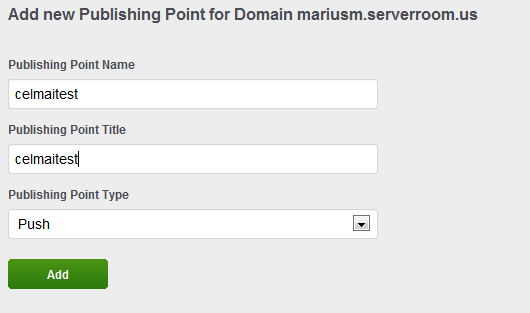 Expand
Download and install Microsoft Expression Encoder 4 PRO SP2. The licensed version is required to stream to iOS devices without the 10-second clip limitation imposed by the free version.
Once installed, open the application and select Live Broadcasting Project on the start screen.
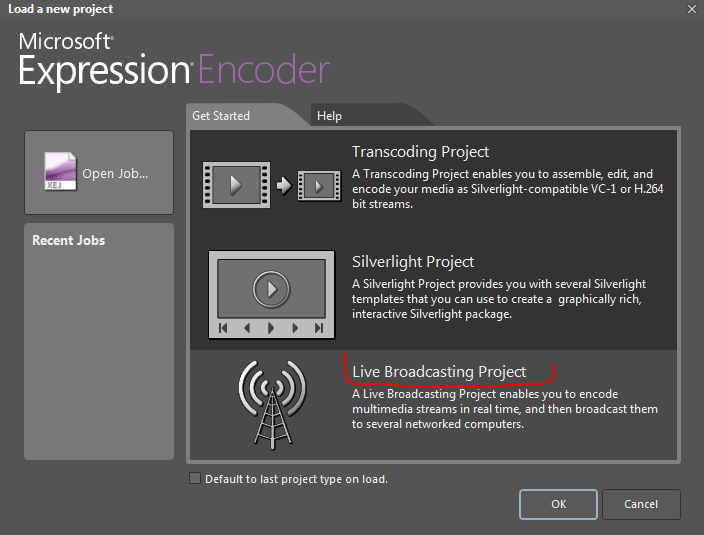 Expand
In the top-right corner of the Live Broadcasting Project, select the H.264 video codec as your stream type.
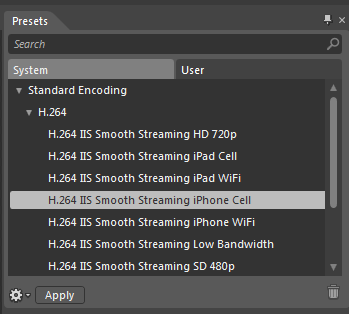 Expand
Click Apply to open the Preset window. In the Output section, check Publishing Point and enter your Server Room domain name and publishing point in the Location field. Click Connect — the encoder will prompt for your username and password.
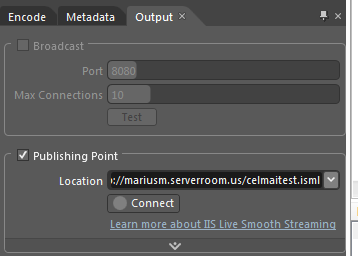 Expand
In the Encode section, select the bitrates you want to encode to during the live stream. Add or remove bitrates using the + and trash icons at the bottom right. The server can detect your connection speed and serve the most appropriate bitrate to each viewer automatically.
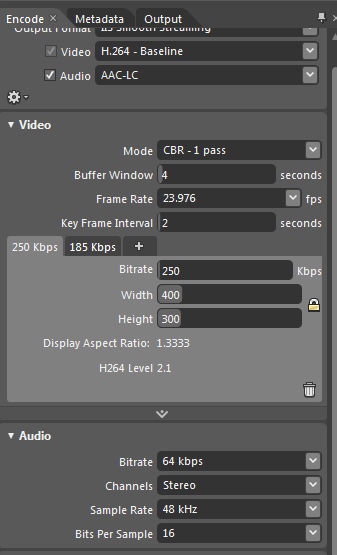 Expand
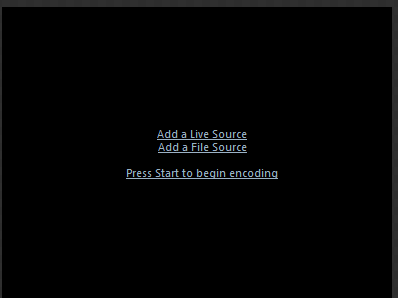
Use Add a Live Source to stream from a webcam, IP camera, or screen capture device. Use Add a File Source to stream a pre-encoded video file.
Once everything is configured, click the large START button to begin your live stream. Click STOP when you are done.
To view your stream, go to your account page, click Publishing Points, and select one of the available playback options.
 Expand
Common questions about streaming with Microsoft Expression Encoder 4 and Server Room.