Servers in stock
 Checking availability...
50% off 1st month on Instant Servers - code 50OFF +1-646-490-9655
Build your server
Auto DJ • Radio automation guide

Radio Automation Guide — Stream with Auto DJ

Follow this step-by-step guide to set up your Server Room Auto DJ. Upload your music, build playlists, and automate your radio station to broadcast 24/7 directly from the cloud.

12-step guide 24/7 automated streaming Cloud-based Auto DJ

Step-by-step guide

Follow each step carefully to configure your Server Room Auto DJ for 24/7 automated radio broadcasting.

1

Log in to the Auto DJ interface

Open your browser and go to your Auto DJ web interface at http://cast1.serverroom.net. Enter the username and password from your Server Room Account Dashboard to log in.
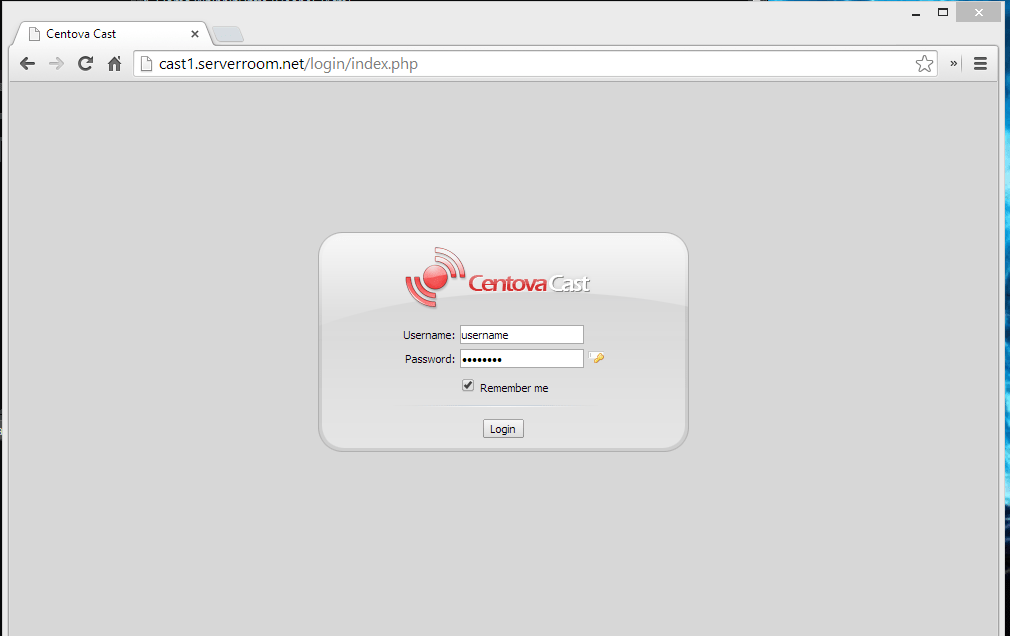
Centova Cast - Login page Expand
2

Open the Files section

After logging in, click Files in the left-hand column of the Auto DJ interface. The Auto DJ only works with .mp3 files.
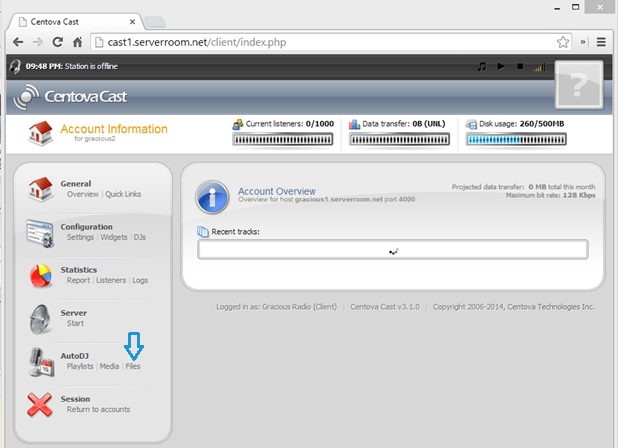
Centova Cast - Files section in left column Expand
3

Navigate to the media folder

Inside the Files section, click the media folder, then click Upload at the bottom of the page.
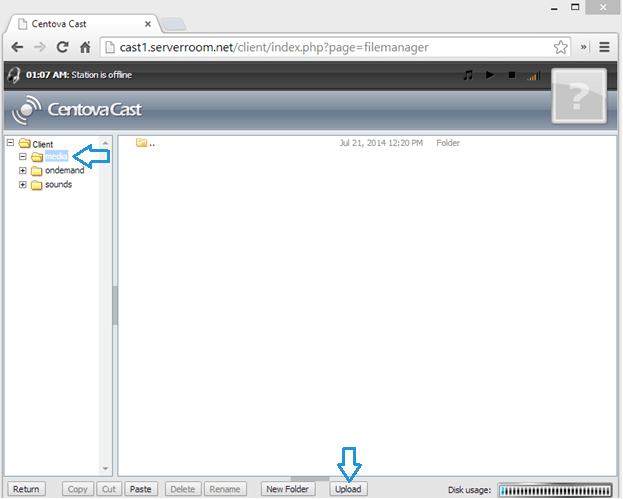
Centova Cast - Media folder, Upload button Expand
4

Select files to upload

When the File Manager opens, click Select files and browse to your music folder on your computer.
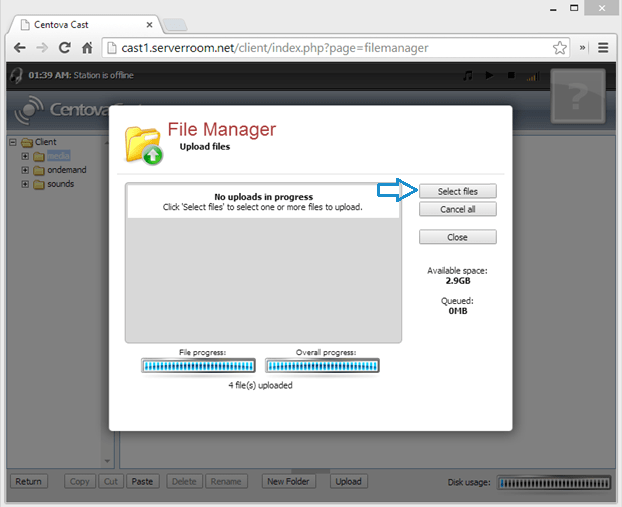
Centova Cast - File Manager, Select files Expand
5

Upload your music files

Select the MP3 files you want to upload and click Open to start the upload process.
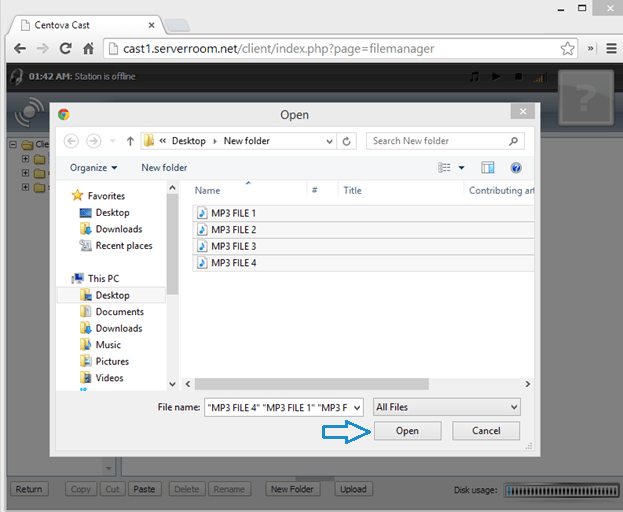
Centova Cast - Select MP3 files and click Open Expand
6

Close the uploader and return to Files

Once the upload completes, click Close and return to the Files section.
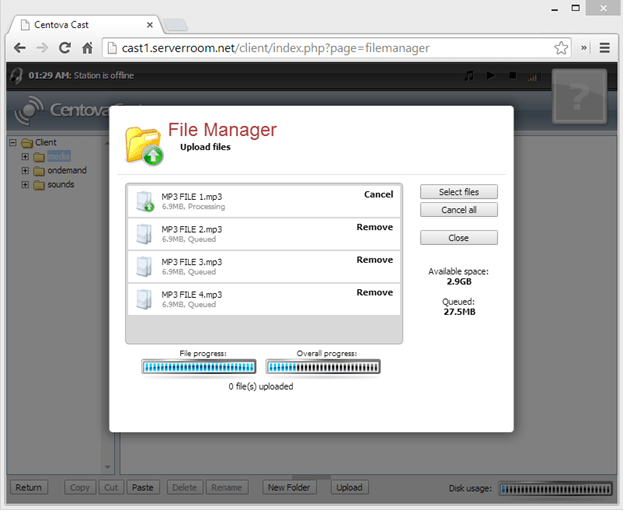
Centova Cast - Upload complete, click Close Expand
7

Update the Media Library

Click Return in the Files section to go back to Account Overview. Click Media in the left column, then click Options → Manual Library Update to scan and index your uploaded files.

Centova Cast - Media Library, Manual Library Update Expand
8

Add tracks to a playlist

After the library updates, browse by Artist and Album to find your uploaded files. Select multiple tracks by clicking the first, holding Shift, and clicking the last. Then drag and drop them into your playlist.

Note: Empty active playlists will prevent the Auto DJ from functioning. Right-click any empty playlist and click Disable.
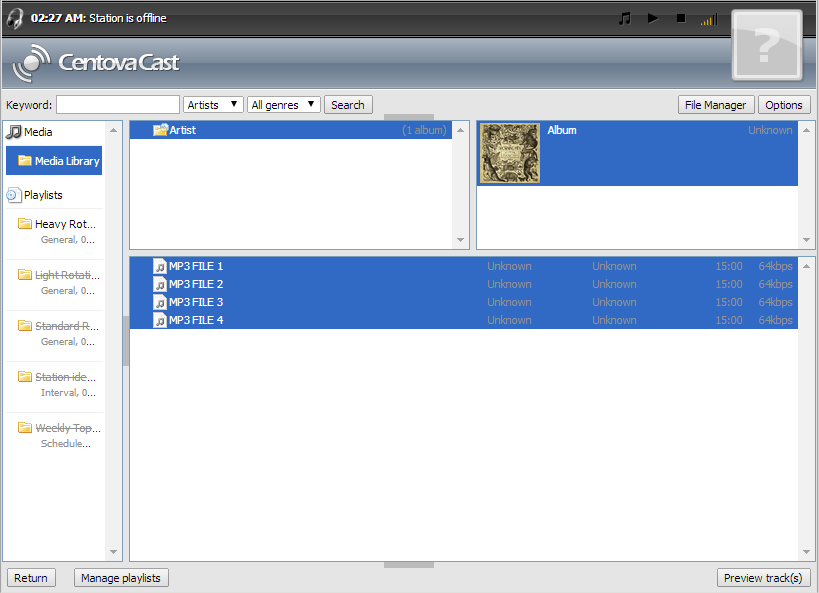
Centova Cast - Browse library and add tracks to playlist Expand
9

Drag tracks into your playlist

Drag and drop your selected tracks from the Media Library into your playlist. Disable any empty playlists to avoid Auto DJ errors.
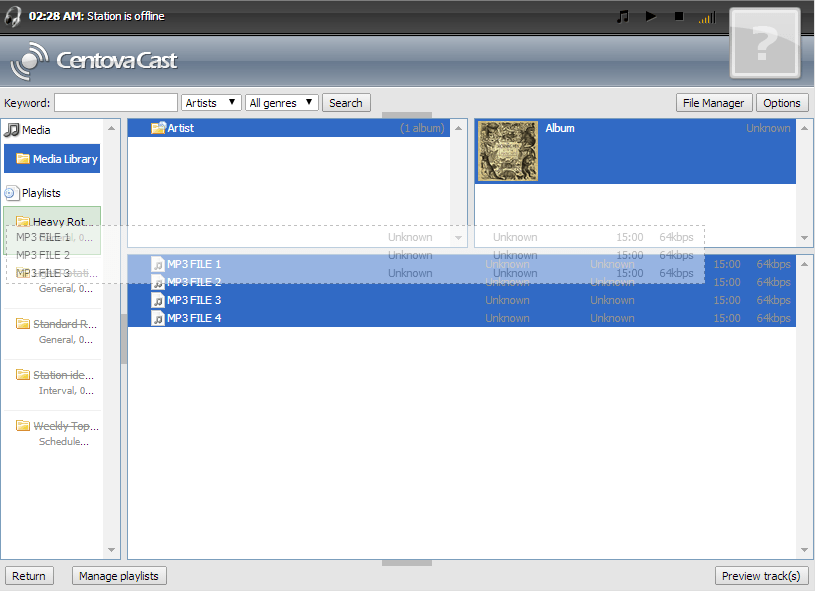
Centova Cast - Drag tracks into playlist Expand
10

Link Auto DJ to your SHOUTcast server

Go to your Server Room Dashboard. Select your Auto DJ account, click Update, hover over the Account tab, and click Settings from the drop-down menu.
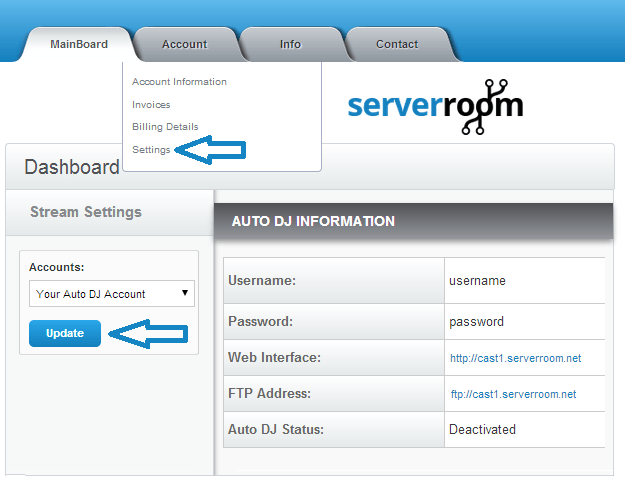
Server Room Dashboard - Auto DJ account Settings Expand
11

Select your SHOUTcast server

In the Settings menu, select your Server Room SHOUTcast account to link it to the Auto DJ. If you use an external SHOUTcast server, enter the server details manually. Click Apply to save.
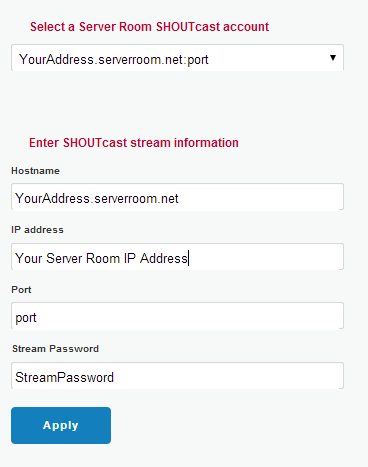
Centova Cast - Select SHOUTcast account in Settings Expand
12

Start your Auto DJ

Click Mainboard in Centova Cast and click Start AutoDJ under the AutoDJ controls. Your station is now broadcasting automatically from the cloud.
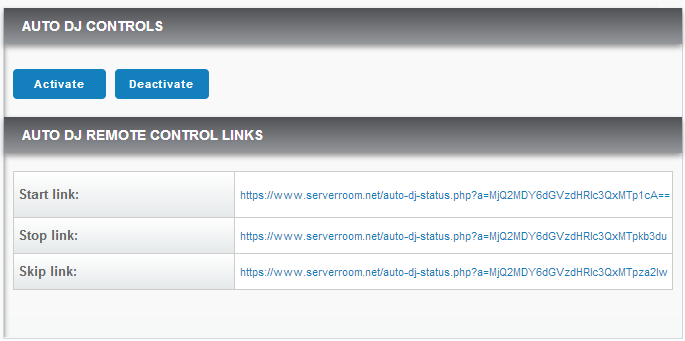
Centova Cast - Mainboard, Start AutoDJ Expand

FAQ

Common questions about setting up the Server Room Auto DJ for automated radio broadcasting.

Where do I find my Auto DJ login credentials?

Your Auto DJ username and password are available in your Server Room Account Dashboard. Use these to log in at your Auto DJ web interface URL.

What file format does Auto DJ support?

The Auto DJ only supports .mp3 files. Make sure all tracks you upload are in MP3 format before uploading.

Why isn't Auto DJ playing anything?

The most common cause is an empty active playlist. Right-click any empty playlist in the Media section and click Disable. Also ensure you have run a Manual Library Update after uploading new files.

Can I go live while Auto DJ is running?

Yes, if you use an Icecast server. Icecast automatically switches listeners from Auto DJ to your live source when you connect, and back when you disconnect. On SHOUTcast, you need to manually deactivate the source before going live.

Can I use Auto DJ with an external SHOUTcast server?

Yes. In the Auto DJ Settings menu, enter your external SHOUTcast server details manually instead of selecting a Server Room account, then click Apply.

Ready to automate your station?

Our radio streaming plans include Auto DJ, unlimited connections, unlimited bandwidth, and 24/7 expert support to keep your station broadcasting around the clock.