Follow this step-by-step guide to configure Nicecast on Mac for live audio streaming with your Server Room SHOUTcast or Icecast server. Get your station live in minutes.
Follow each step carefully to configure Nicecast for live audio streaming with your Server Room server. Nicecast supports both SHOUTcast and Icecast protocols.
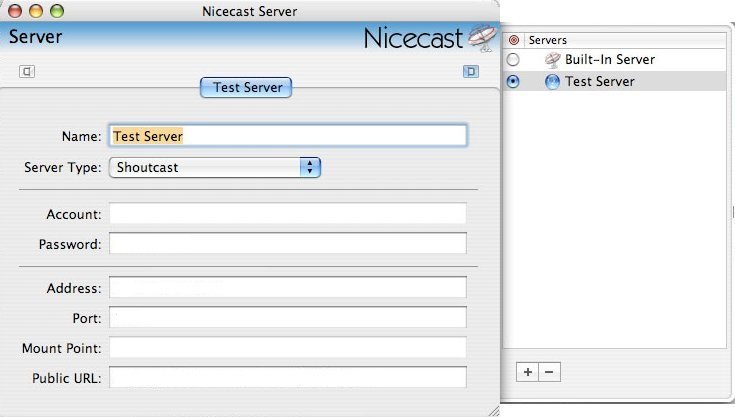
Launch Nicecast. Open the server configuration window by going to Window → Nicecast Server. Configure the following:
 Expand
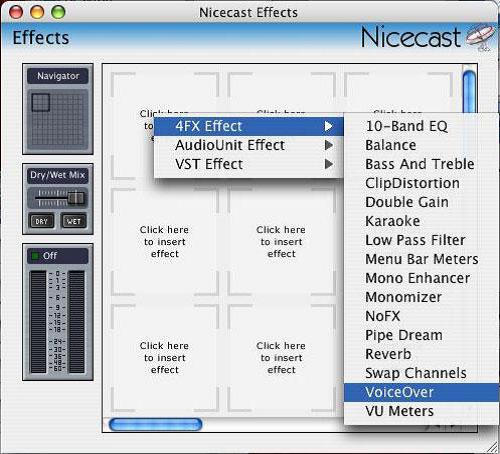
Nicecast supports live voice-over, allowing you to mix live microphone audio with audio from an application such as iTunes. Access this feature from the Effects Window.
 Expand
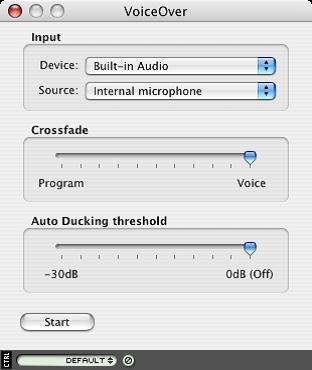
After adding the Voice Over effect, configure your microphone input directly from the voice-over window to select your preferred audio input device.
 Expand
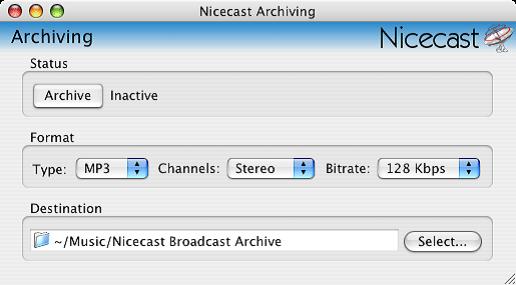
Nicecast can save your webcasts directly to MP3 files for later playback or editing. Configure archiving from the Nicecast Archiving window.
 Expand
Once everything is configured, click the Start Broadcast button in the Nicecast Broadcast window to begin streaming to your Server Room server.
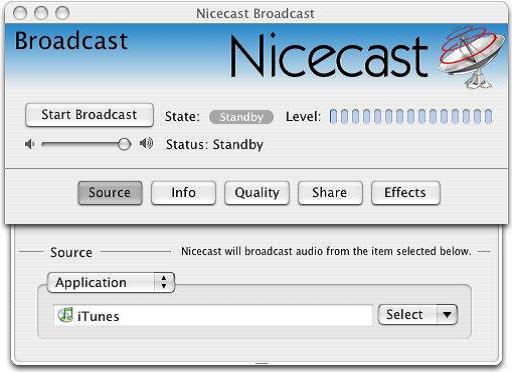 Expand
Common questions about configuring Nicecast for live streaming with Server Room.