Follow this step-by-step guide to configure EdCast for live audio streaming with your Server Room SHOUTcast or Icecast server. Get your station live in minutes.
Follow each step carefully to configure EdCast for live audio streaming with your Server Room server credentials.
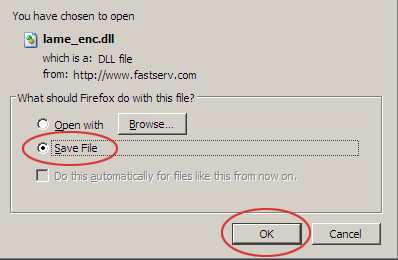
EdCast requires lame_enc.dll for MP3 encoding. Download it from djlab.com and save it to your downloads folder.
 Expand
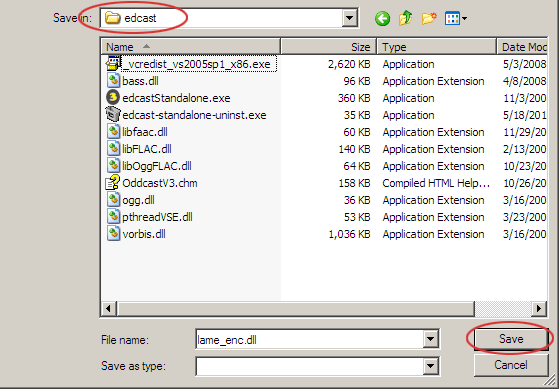
Copy the downloaded lame_enc.dll file and paste it into the EdCast installation folder. This enables MP3 encoding within the application.
 Expand
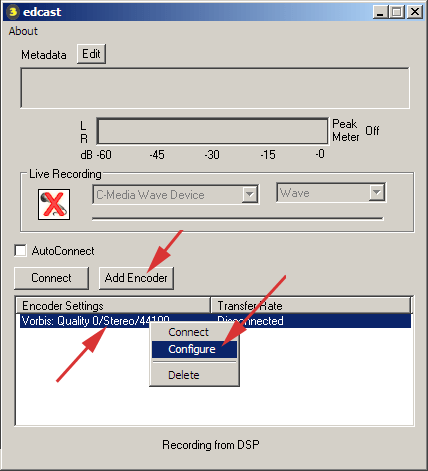
Open EdCast and click Add encoder. Right-click the newly created encoder and click Configure to open its settings.
 Expand
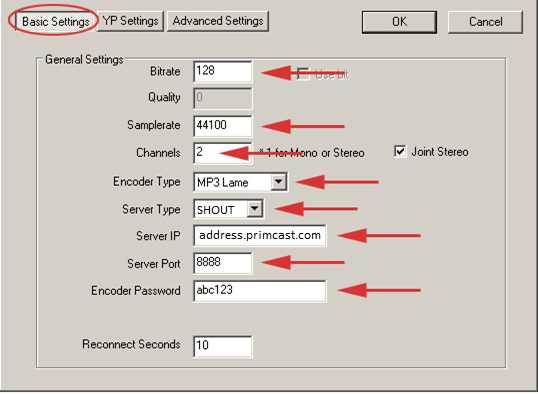
In the Basic Settings tab, set your bitrate and sample rate, select MP3 Lame as the encoder type, and choose your server type. Enter your Server Room streaming address, port, and password. Click YP Settings to continue.
 Expand
In YP Settings, enter your stream name, description, website URL, and genre. Highlight your encoder in the list and click Connect to start your live broadcast.
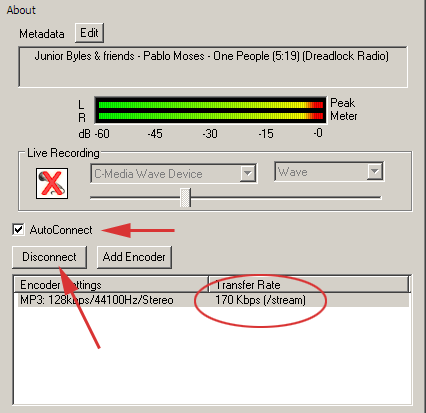 Expand
Common questions about setting up EdCast for live audio streaming with Server Room.