Follow this step-by-step guide to configure your Barix Instreamer hardware encoder for live audio streaming with your Server Room SHOUTcast or Icecast server. Get your station live in minutes.
Follow each step carefully to configure your Barix Instreamer for live audio streaming with your Server Room server credentials.
Power on the Barix Instreamer and plug in headphones or a speaker. The device will announce its IP address via audio. The default address is 192.168.10.10. Enter this address in your browser to access the web interface.
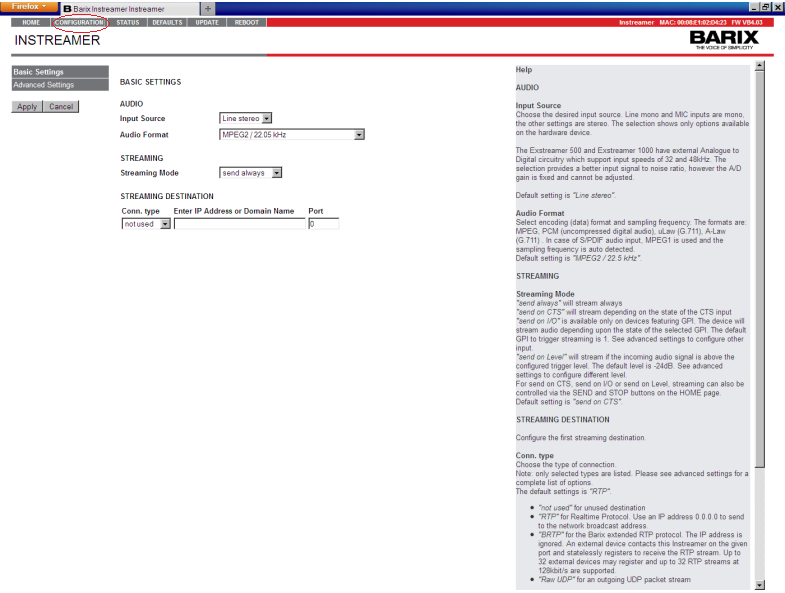
Once logged into the web interface, click the Configuration tab and then click Advanced settings.
 Expand
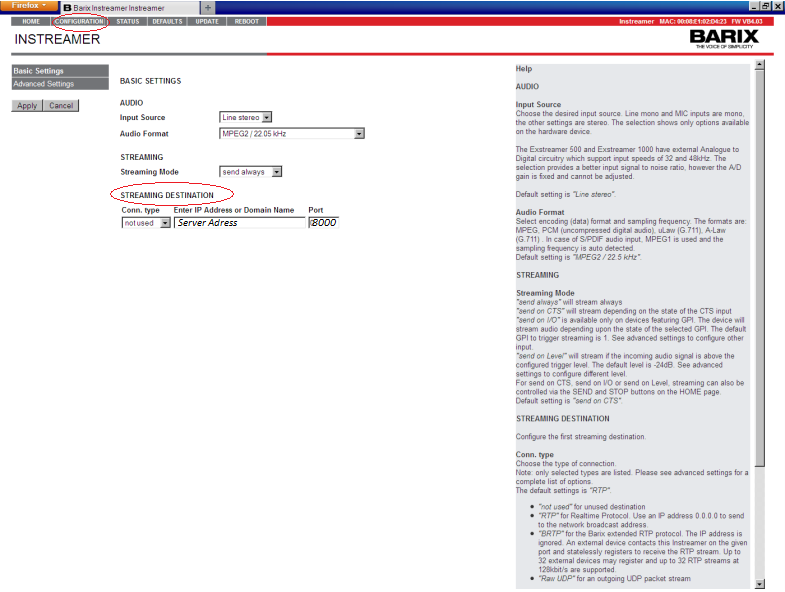
In Advanced settings you can select your audio input source, audio format, and streaming destination.
 Expand
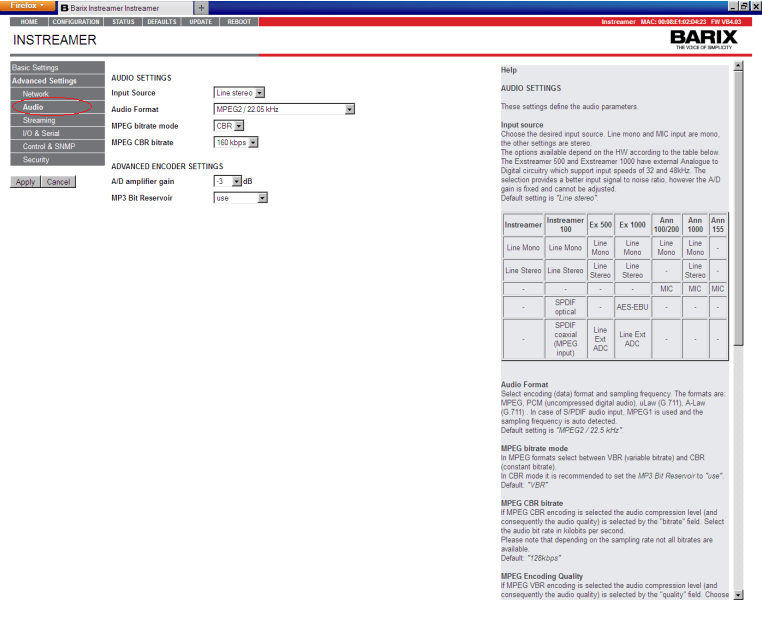
In the Audio menu, select your desired input source, audio format, and bitrate. Choose based on your listeners' connection speed:
 Expand
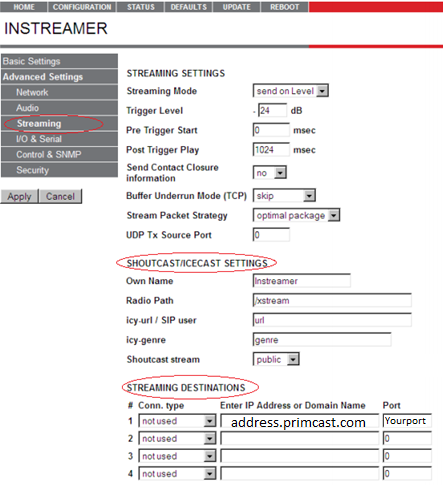
Enter your Server Room streaming address and port number in the Streaming Destination field. Your streaming address and port are available in your Server Room setup email or in your account dashboard. Click Apply to save.
 Expand
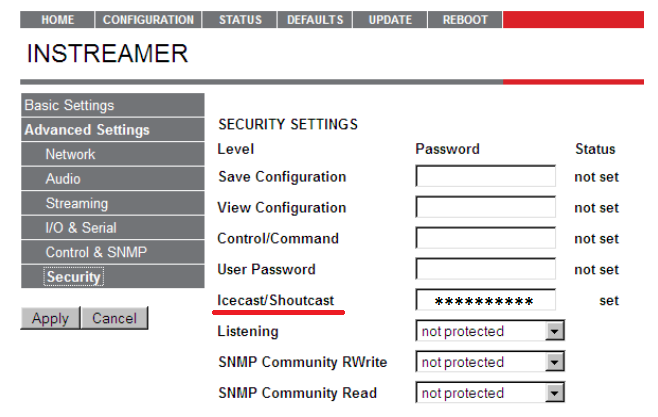
Go to the Security tab and enter your streaming password (not the admin password). Click Apply to start streaming.
 Expand
Common questions about configuring the Barix Instreamer for live streaming with Server Room.