Follow this step-by-step guide to configure Flash Media Live Encoder to stream live H.264 video to your Server Room Wowza Streaming Engine server. Get your stream live in minutes.
Follow each step carefully to configure Flash Media Live Encoder for live video streaming with your Server Room Wowza server credentials.
Download Adobe Flash Media Live Encoder from the Adobe website. You will need a free Adobe ID to download it. Run the installer and complete the setup on your computer.
Wowza Streaming Engine delivers your H.264 content to all major platforms: Adobe Flash, Apple iOS, Microsoft Silverlight, Apple QuickTime, Android, and set-top boxes.
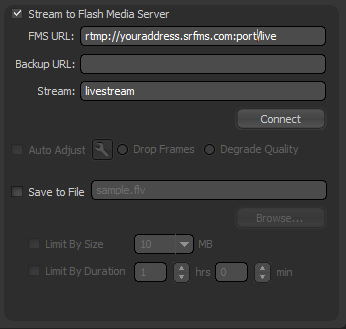
Open Flash Media Live Encoder. In the FMS URL field on the right side, enter your Server Room streaming address in the format:
rtmp://example.srfms.com:port/live
Replace example.srfms.com with your stream address and port with your port number. Both are available in your Server Room setup email and account dashboard. If you have a dedicated or virtual server with Wowza installed, use the server IP instead. Click Connect and enter your username and password when prompted.
 Expand
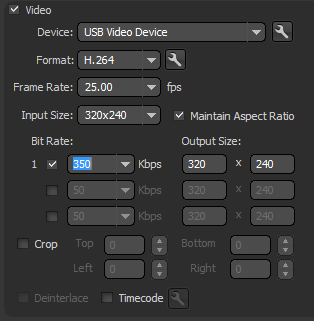
Select your video capture device and set your encoding options. For the best experience with Wowza, use H.264 video format at 25 fps, and choose the bitrate appropriate for your upload speed and stream quality requirements.
 Expand
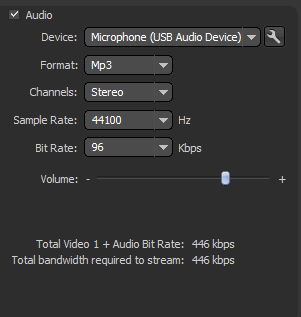
Select your audio input device and configure the audio details. For the best experience with Wowza, use MP3 format, Stereo, at 44100 Hz sample rate, minimum 96 kbps.
The total bitrate displayed at the bottom is the sum of your audio and video bitrates — make sure your internet upload speed can support it.
 Expand
Click the blue Start button at the bottom of the encoder to begin your live stream.
To watch on iPhone, use: http://Domain:Port/live/streamName/playlist.m3u8
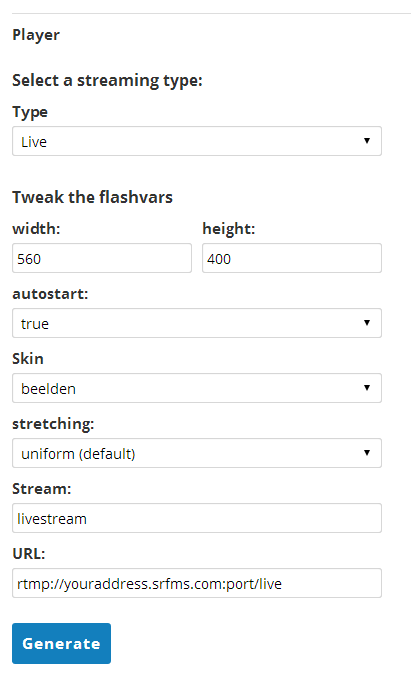
To embed a player on your website, use rtmp://youraddress.srfms.com:port/live as the URL and your stream name in the stream field.
 Expand
Common questions about streaming to Wowza Streaming Engine with Server Room.