Servers in stock
 Checking availability...
50% off 1st month on Instant Servers - code 50OFF +1-646-490-9655
Build your server
Wowza • Video on demand tutorial

Stream On-Demand with Wowza Tutorial

Follow this step-by-step guide to upload your video files via FTP and create an embeddable on-demand player through your Server Room Dashboard. Get your video on demand stream up and running in minutes.

3-step guide FTP upload 24/7 live support

Step-by-step guide

Follow each step carefully to upload your video content and generate an embeddable on-demand player through your Server Room Dashboard.

1

Connect to your Wowza account via FTP

You will need an FTP client - we recommend FileZilla, which you can download for free from the FileZilla website. After installing it, open FileZilla and connect to your Wowza account using the credentials provided in your Server Room Dashboard.

Copy and paste the stream address, username, and password from your Server Room Dashboard into the corresponding fields in FileZilla.

Note: Do not enter your Wowza port number in the FileZilla port field - it is not the FTP port. Leave it blank and FileZilla will insert the correct FTP port automatically.
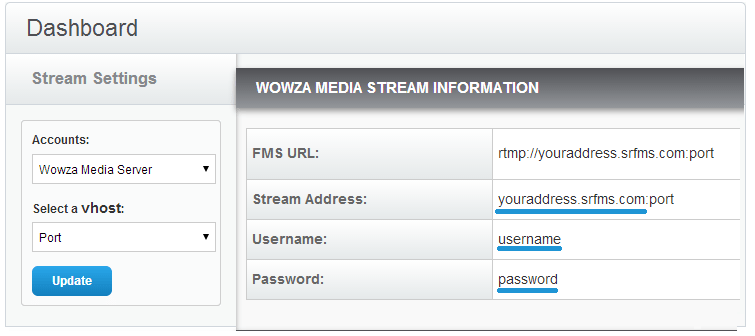
Server Room Dashboard - Wowza FTP credentials Expand
2

Upload your video files to the content folder

Once connected via FTP, navigate to your video files on your local computer and drag and drop them into the content folder on the server.

Supported Wowza video formats are: .flv, .mp4, .m4v, .mp4a, .3gp, and .mp3.
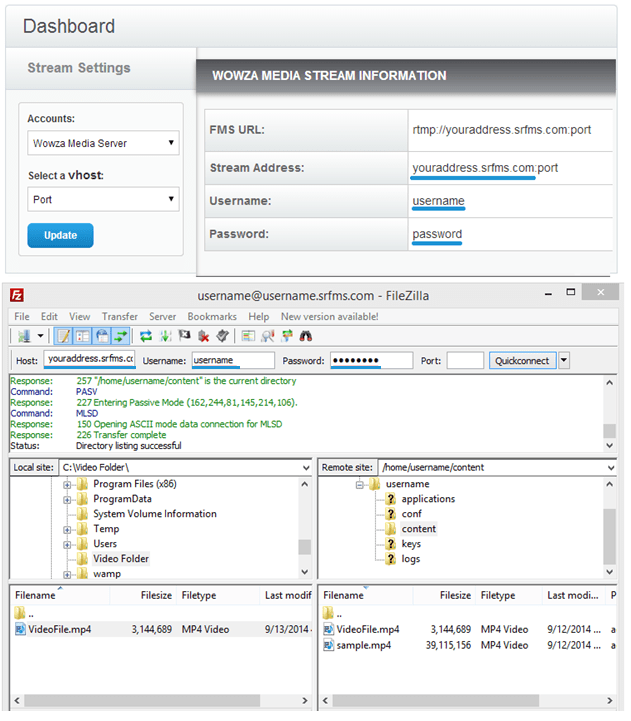
FileZilla - Drag and drop files into the Wowza content folder Expand
3

Generate your on-demand player and embed it

After uploading your files, go back to your Server Room Dashboard and click Player and Encoder in your account tabs. Follow these steps to create your embeddable player:

  1. Set type to On-demand
  2. Enable Autostart if you want the video to play automatically when visitors land on your page (default: true)
  3. Choose a player skin for your website
  4. Enter the filename in this format: mp4:filename.extension - for example mp4:VideoFile.mp4
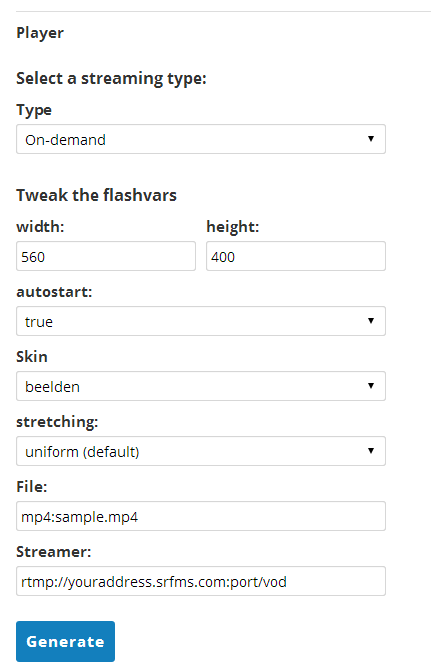
  5. Click Generate
  6. Copy the embed code shown below the player preview and paste it into your website
Server Room Dashboard - On-demand player generator Expand

FAQ

Common questions about streaming video on demand with Wowza and Server Room.

Where do I find my FTP credentials for FileZilla?

Your FTP stream address, username, and password are available in your Server Room account dashboard and in your Server Room setup email. Copy them directly from the dashboard into FileZilla's host, username, and password fields.

Which video formats does Wowza support for on-demand streaming?

Wowza supports .flv and the MP4 container family: .mp4, .m4v, .mp4a, and .3gp. MP3 audio-only files are also supported. For best compatibility across devices we recommend uploading H.264-encoded .mp4 files.

Why should I leave the port field blank in FileZilla?

Your Wowza streaming port is different from the FTP port. Entering it in FileZilla's port field will cause a connection error. Leave the port field empty and FileZilla will automatically use the correct FTP port (21 by default).

How do I format the filename in the player generator?

Enter the filename using the format mp4:filename.extension - for example mp4:VideoFile.mp4. This tells Wowza which codec wrapper to use when serving the file. The name must match the filename you uploaded to the content folder exactly, including the extension.

My player embed isn't showing video - what should I check?

First confirm the file was fully uploaded to the content folder and the filename in the player generator matches exactly (including capitalisation and extension). Also check that the file format is supported. If the issue persists, contact our support team via live chat with your stream address and filename for prompt assistance.

Ready to go on demand?

Our audio and video streaming services include unlimited connections, unlimited bandwidth, and 24/7 expert support to keep you on air.