Follow this step-by-step guide to configure Microsoft Outlook to work with your Server Room email account using POP3. Get your email up and running in minutes.
Follow each step carefully to configure Microsoft Outlook with your Server Room POP3 email account. These settings apply to Outlook 2003 and are similar across other Outlook versions.
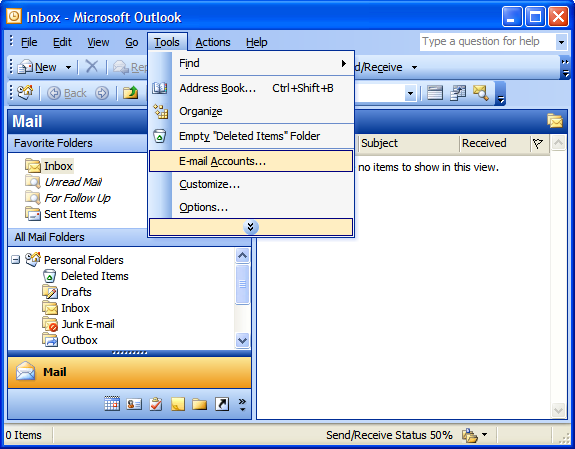
In Microsoft Outlook, go to Tools → E-mail Accounts.
 Expand
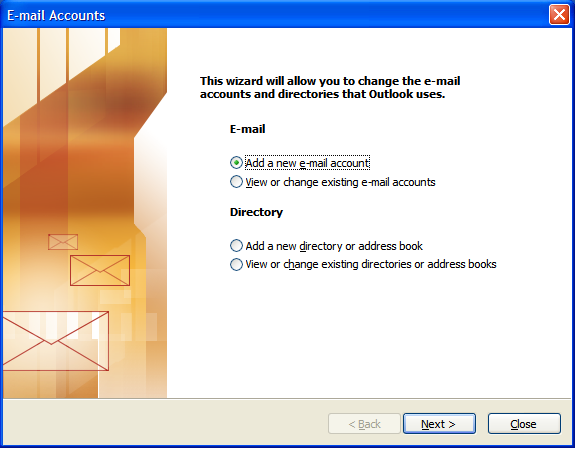
In the E-mail Accounts wizard, select Add a new e-mail account and click Next.
 Expand
Select POP3 as the server type and click Next. On the Internet E-mail Settings screen, fill in:
Click More Settings to continue.
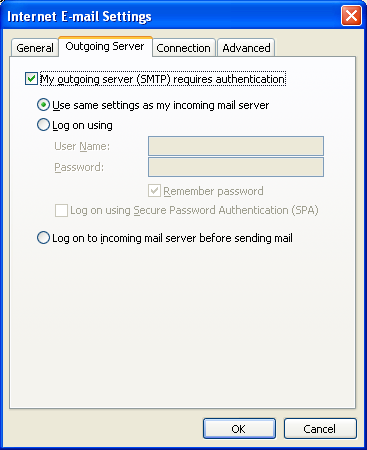
Click the Outgoing Server tab. Check My outgoing server (SMTP) requires authentication. Select Use same settings as my incoming mail server.
 Expand
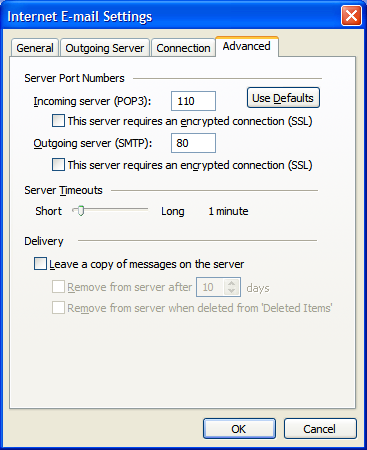
Click the Advanced tab and change the Outgoing server (SMTP) port to 80 or 3535. Click OK.
 Expand
Click Next to proceed to the final confirmation step.
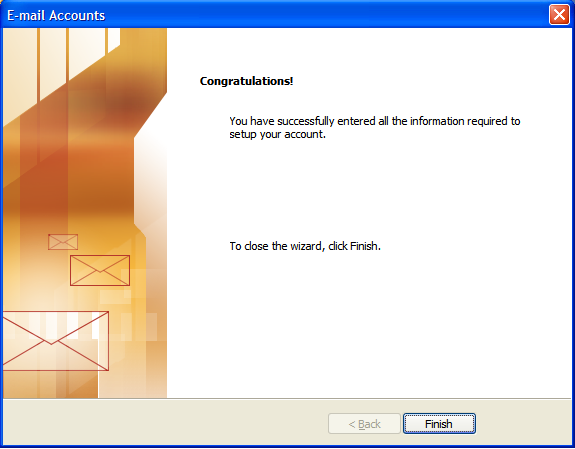
Click Finish to complete the setup. Your email account is now configured in Outlook and ready to send and receive messages.
 Expand
Common questions about setting up Microsoft Outlook with a Server Room POP3 email account.